Unfortunately, no one can be told what HDR is. You have to see it for yourself.
I can only show you some photos of my HDR monitor, but these won’t convey why HDR is so important. But it’s the only option, unless you already have HDR available and enabled, in which case you don’t need to be convinced.
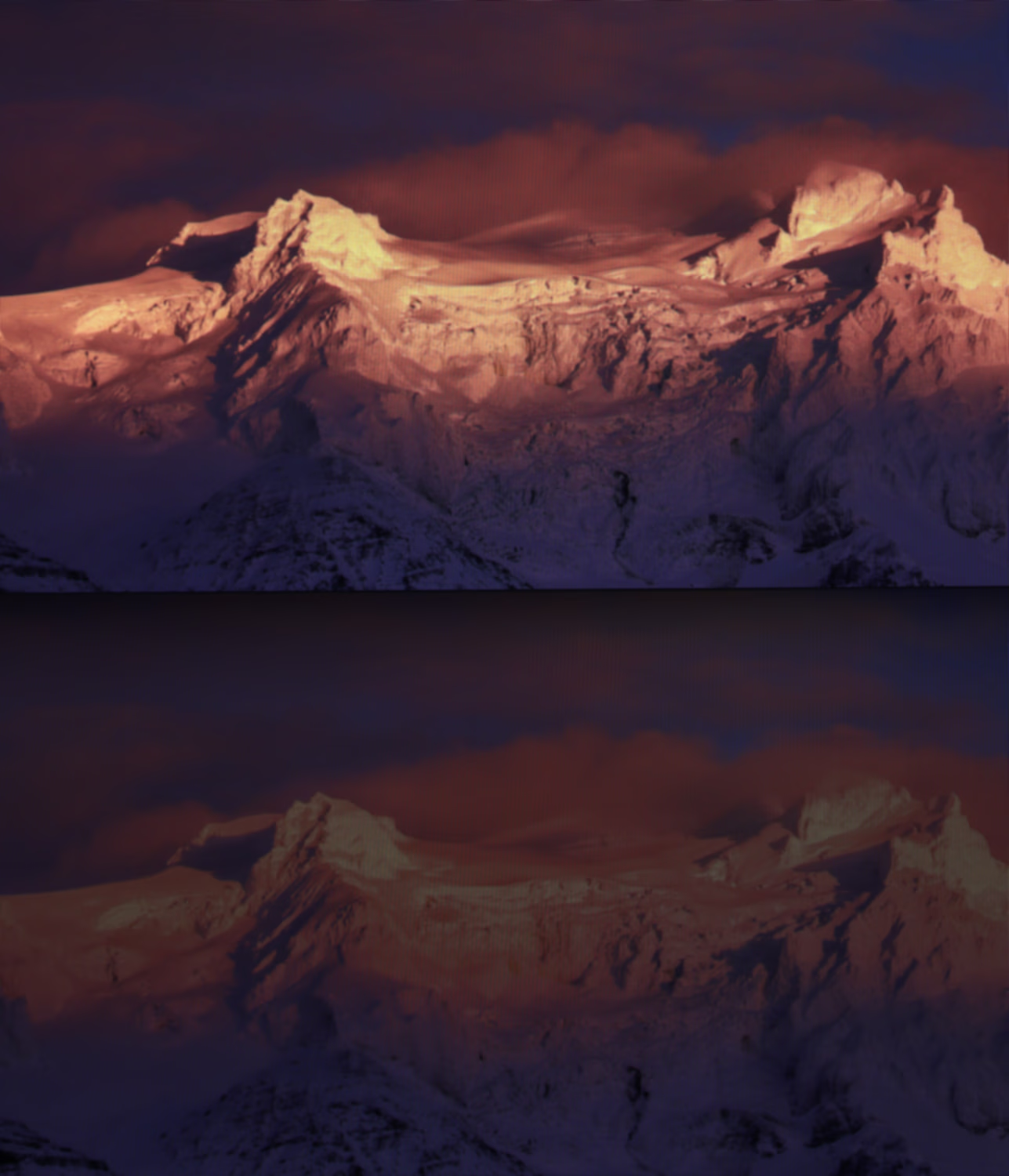
HDR (top) and SDR (bottom) version of the same image
The image above is a photo of my monitor that I took with my camera. It should be noted that this is a single photo, not a collage of two photos with different exposures, or something of that nature. The monitor shows two copies of the same image – one with HDR (high dynamic range) enabled, and the other one with only SDR (standard dynamic range) data.
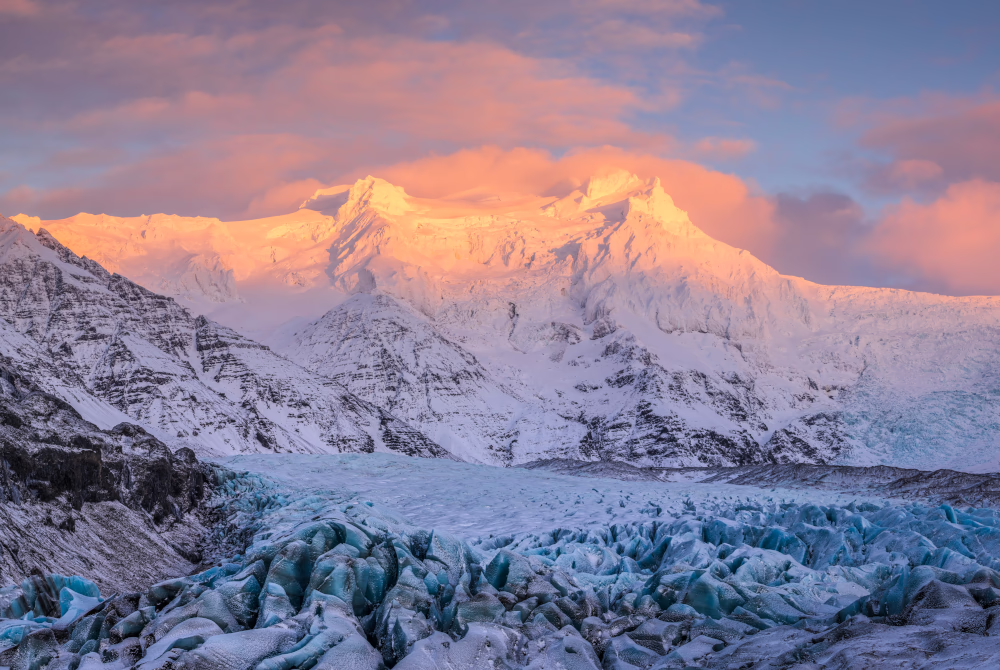
You can get this image from the Adobe Gain Map website, specifically file 04.jpg. Unless you have an HDR-enabled image viewer – and these don’t really exist at the time I write this, I had to develop one for myself – you will see this image as follows:
SDR version of the image
As can be seen, the image is quite bright, in contrast to the bottom (SDR) part of the comparison image that was shown previously. How can this be? Well, this is the part that cannot easily be shown. The dark, muted bottom half of the comparison image is visible on the monitor exactly as the browser displays the image above. It’s the HDR portion of the image that is remarkably brighter.1
Furthermore, HDR is about more than just greater brightness. It’s also about a wider color gamut. The gamut refers to the range of colors a monitor can display. For instance, your sunset photos do appear dull and not true to life because the sRGB color standard cannot show the vibrant colors involved.
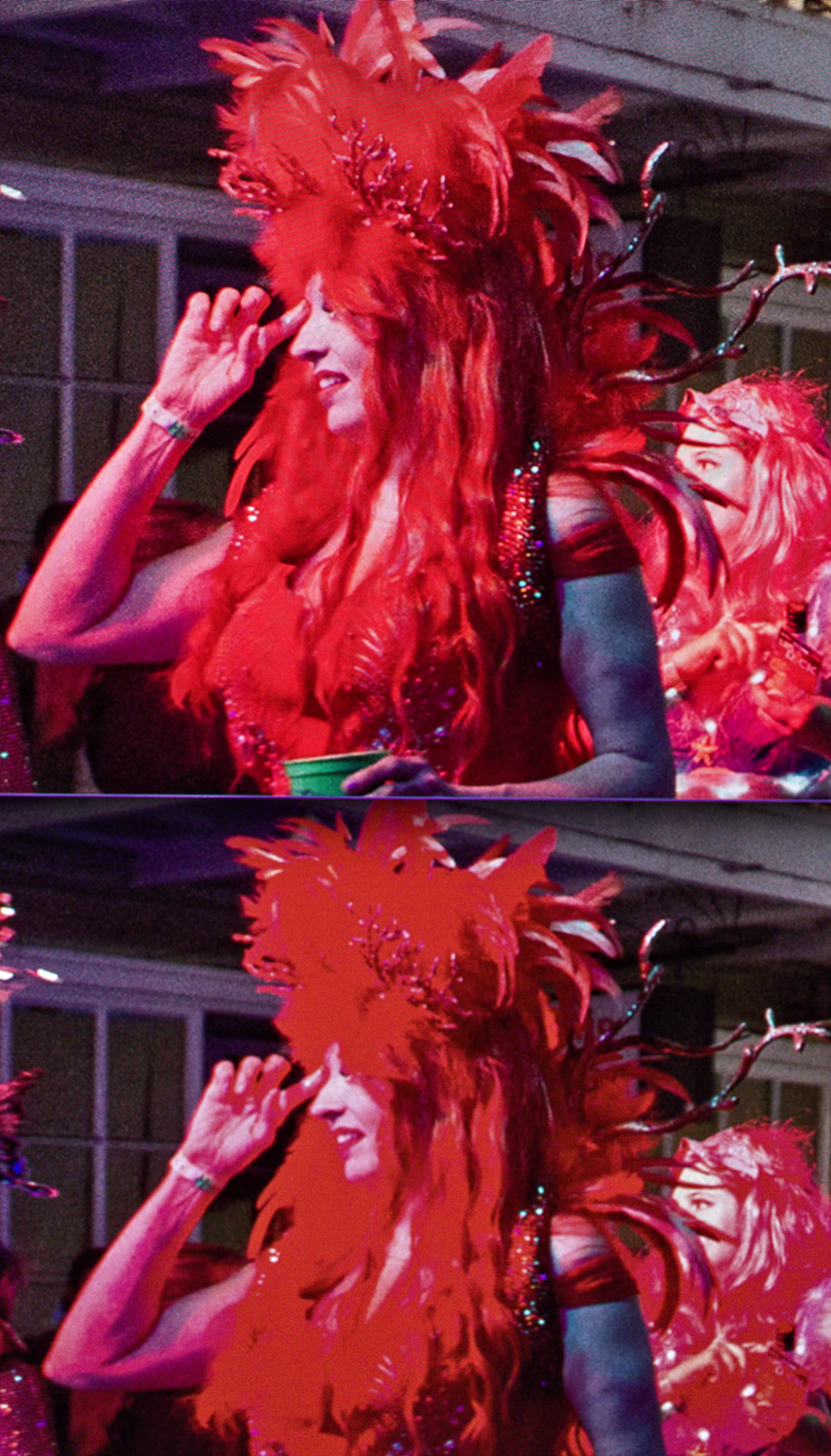
Wide gamut (top) and sRGB (bottom) version of the same image
The image above again is a single photo of a monitor displaying the same image in two variants.2 The bottom half shows an image for which the standard image processing pipeline cannot represent deep reds. As a result, a great deal of detail is lost and replaced by flat red “blobs.” By contrast, the wide-gamut version of the image preserves many more intricate details in the hair, feathers, clothing, or even the text on the flyer.
HDR support in recent versions of KDE involves a tone mapper. You cannot easily or selectively disable this tone mapper in the UI. The purpose of the tone mapper is to map the dynamic range of the image content you want to view to the range that your hardware can display.
In theory, this is fine. In practice, however, this behavior is questionable at best3 and completely incorrect when it comes to how Windows and games designed for Windows work.
To disable the tone mapper, you need to set the following environment variable, for example in .zshenv file:
KWIN_DISABLE_TONEMAPPING=1
The upcoming KDE release will address this issue for the games. For more information, refer to the following commit.
When it comes to the display driver, supporting HDR has many facets. First, you need to set up the HDR display mode in the desktop environment’s display settings. This has worked correctly for a long time, regardless of the GPU.
The second thing to consider is the WSI Vulkan layer that needs to be able to properly communicate the HDR color space to the compositor. This is a relatively recent development, and still problematic on Nvidia. It worked for a while with a certain driver version, but it has regressed again since then.
The solution is to install the Vulkan Wayland HDR WSI Layer, which is also available for Arch as vk-hdr-layer-kwin6-git in AUR. The layer is enabled by setting the following environmental variable, though it should only be set when necessary:
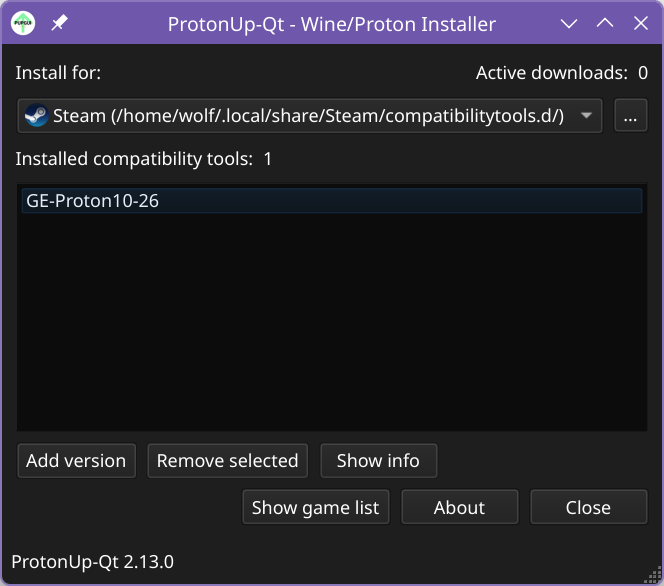
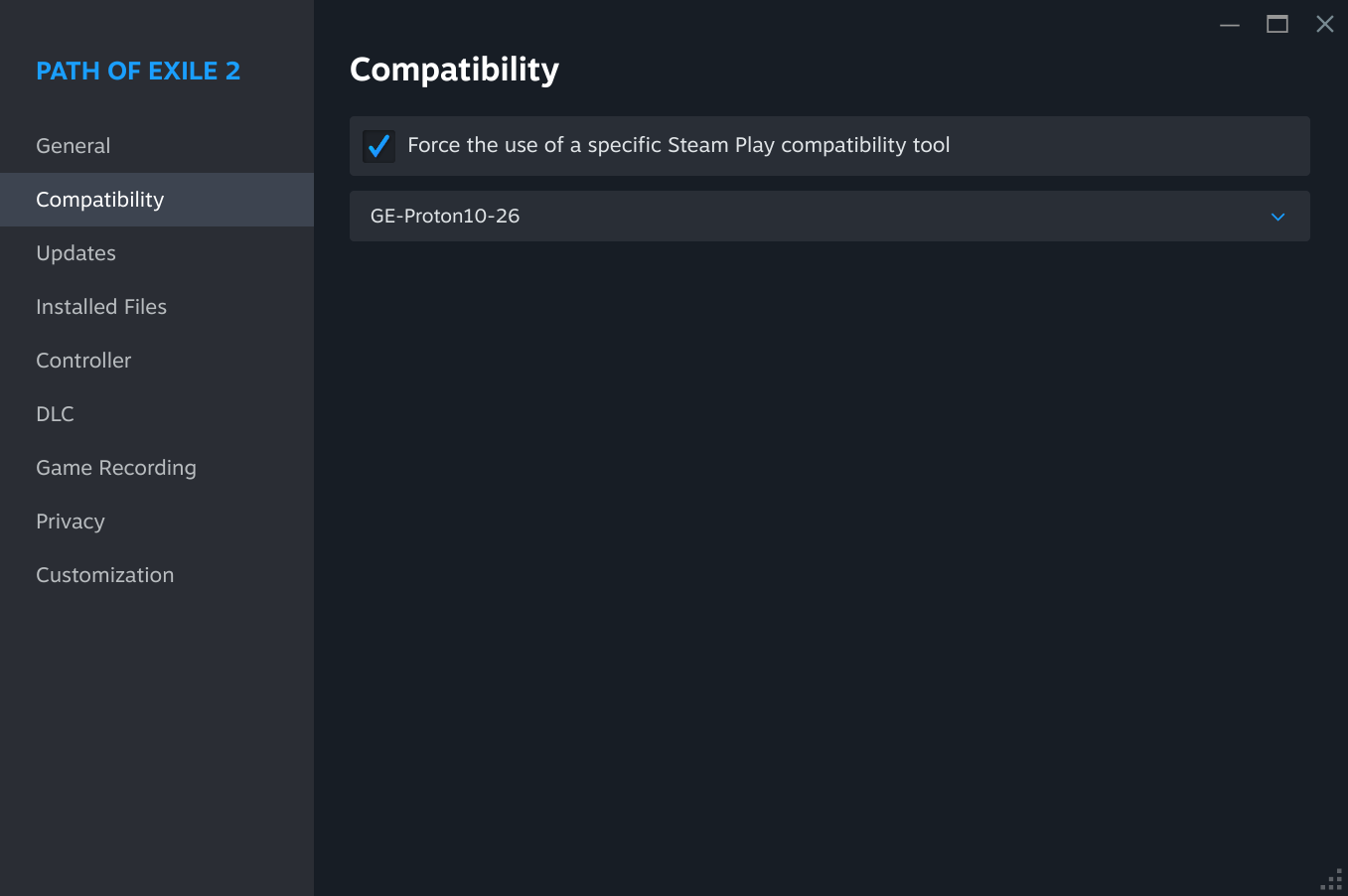
HDR does not seem to work with Proton 10 or the Proton experimental version, which can be installed via Steam. However, it does work with GE-Proton, which can be installed with the ProtonUp-Qt utility.
GE-Proton10-26 is the latest version currently available. Steam needs to be restarted in order to pick it up.
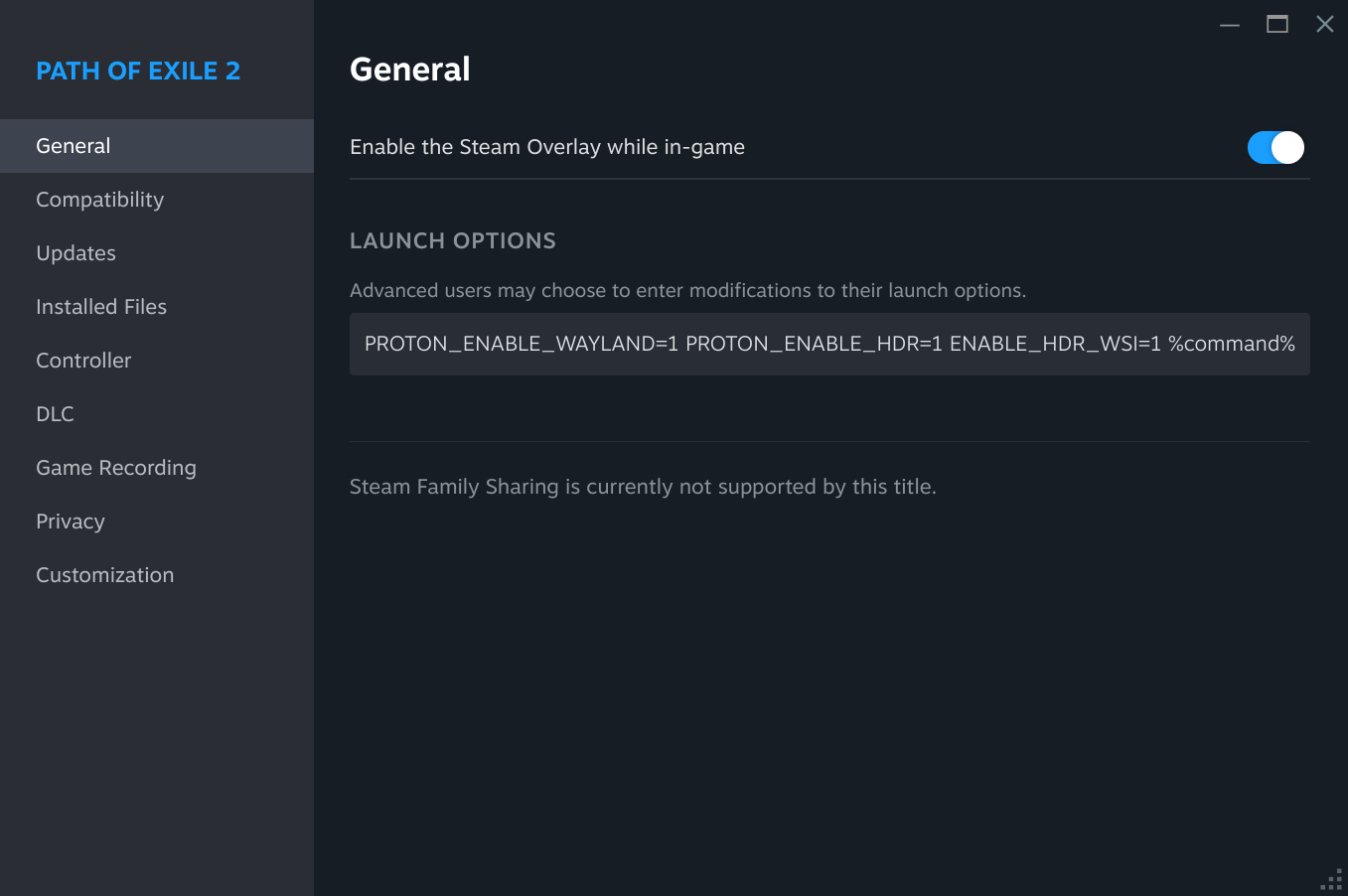
Setting the environment variable PROTON_ENABLE_WAYLAND makes Proton use the Wayland backend instead of the X11 backend. This is necessary for HDR to function.4
The PROTON_ENABLE_HDR option makes Proton expose HDR functionality to the game. Or something like that.
Nvidia requires the WSI layer, which is activated by the ENABLE_HDR_WSI variable.
Finally, enable the HDR option in the game. For me it works in Forza Horizon 4 and 55, The Talos Principle 2, Path of Exile 2, Elden Ring. I was not able to switch HDR on in Hitman World of Assasination, but this is likely a problem with the game itself.
Let’s take a look at Star Citizen, a game not available on Steam. The installation process is performed with the help of a script prepared by the Star Citizen Linux User Group. It uses a more-or-less vanilla version of Wine (not Proton), with some tricks6 to install PowerShell, manage DLL overrides, and perform other such actions to set up the environment in the right way.
Similarly to the Proton case above, the following environment variables must be set for everything to work correctly. In the case of Star Citizen, the launch script is the way to handle this.
The DISPLAY variable must be unset. This forces Wine to use the Wayland driver instead of the X11 driver.
To enable HDR support in the DirectX translation layer, set the DXVK_HDR=1 variable.7
The X11 version of Wine8 is unaware of DPI scaling and always renders at a 1:1 pixel rate, unless forcibly scaled by the compositor.9 The Wayland version, however, is DPI-aware and scales windows appropriately. The default DPI setting is 96 DPI (meaning 100% scaling), which will result in blurred window content or even full-screen windows larger than the available screen space if the monitor scaling is set to values like 150% or 200%.
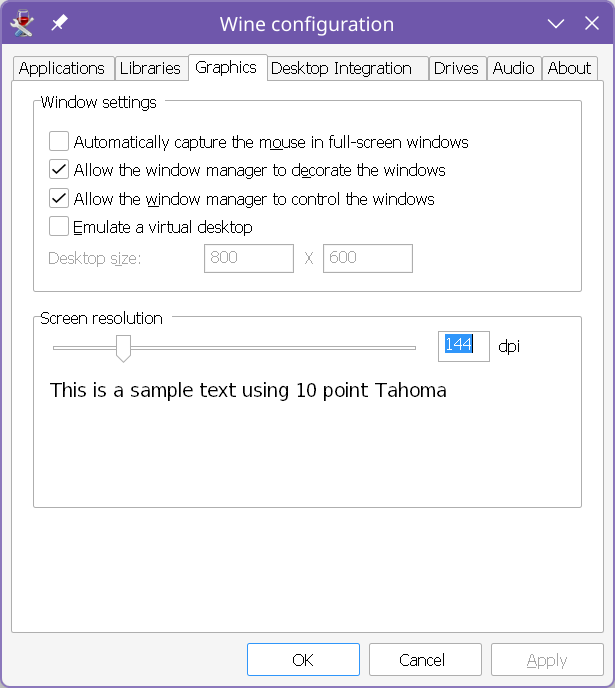
Use the winecfg utility to set the correct DPI value. Enter the DPI of the monitor on which you want to play. Wine will automatically resize its windows on monitors with other scaling factors, and you want to have 1:1 pixel mapping. You may need to set the WINEPREFIX environment variable to point to the Wine environment in which the game was set up, rather than the global one. The DPI value that should be set is a simple calculation of:
$$
96 * ScalingFactor
$$
For example with 150% scaling you get:
$$
96*1.5=144
$$
Changing this options sets two registry key values. The first one is HKCU/Control Panel/Desktop/LogPixels, and the second one is HKCU/Software/Wine/Fonts/LogPixels. Both need to be set to the same value (the DPI number). I believe I encountered an issue in which only one of these registry keys was updated, and that resulted in problems. You can view or edit the registry using the regedit utility included with Wine.
[gamescope] [Error] vulkan: vkGetPhysicalDeviceFormatProperties2 returned zero modifiers for DRM format 0x38344241 (VkResult: 0)
[gamescope] [Error] vulkan: vkGetPhysicalDeviceFormatProperties2 returned zero modifiers for DRM format 0x38344258 (VkResult: 0)
Gamescope targets Steam hardware, which uses AMD GPUs. The use of video formats supported by these GPUs seems to be hardcoded, with no fallback or discovery of other possible formats. And support for Nvidia does not seem to be a priority for anyone.
The path for HDR in games on Linux appears to be solid. When I experimented with Gamescope some time ago, when it was still working on Nvidia, it all felt like a brittle hack. However, for the steps I outlined in this article, I only see each task disappearing, not evolving into something else or requiring something new.
The KDE tonemapper workaround will soon become unnecessary. The fix has been committed.
The Nvidia WSI will eventually work without the need for workarounds.
DXVK will no longer require manual HDR activation, just as it no longer requires manual ray tracing activation.
Wine / Proton will eventually default to Wayland.
So, is this just like turning the monitor brightness up? What’s so special about this? The answer is, it’s complicated, it’s about calibration, and SDR levels still matter. You don’t want to be looking into the sun every time you open a web page with a white background. You don’t want to wash out the mid-range just to get bright highlights. ↩︎
To clarify, the source image is the same file. The variants differ based on how the image data is processed by the software and displayed on the screen. ↩︎
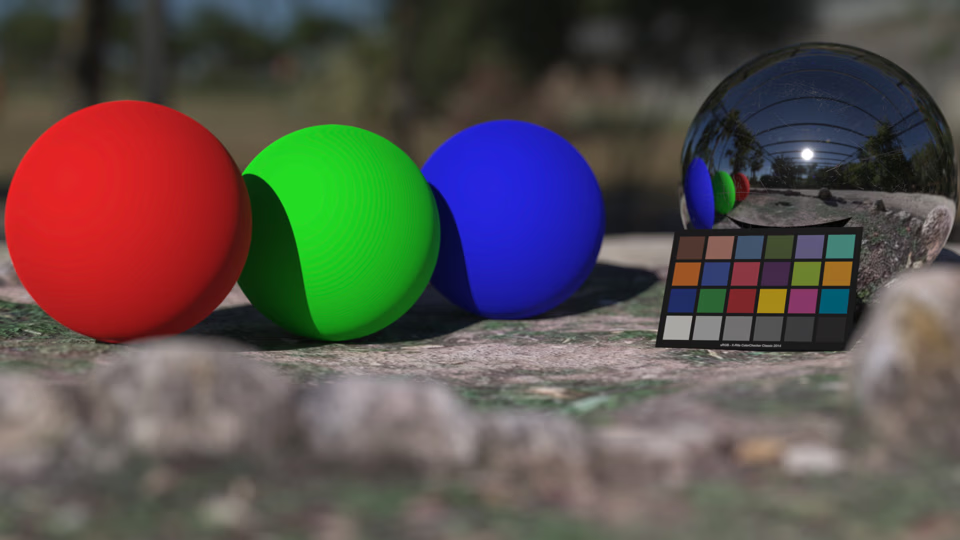
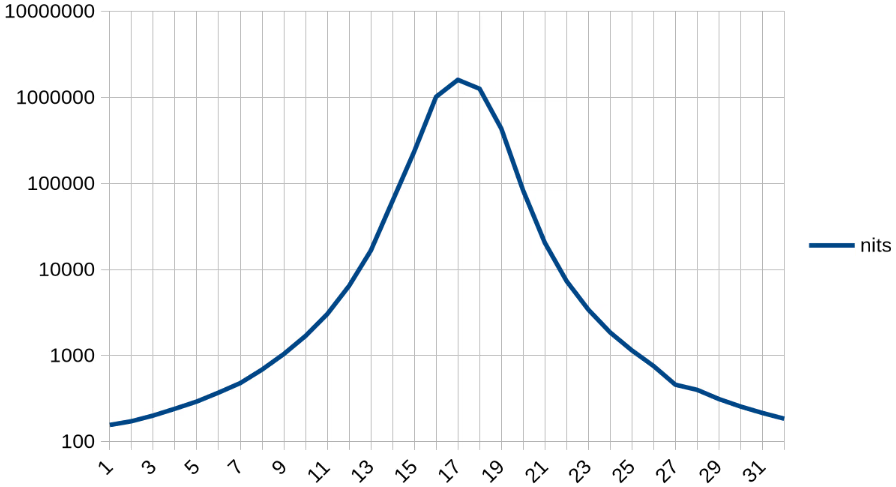
Consider the Sevilla Park stone ring closeup image as an example. Almost the entire image is in the SDR range – the only HDR element is the reflection of the sun in the mirror ball. The sun should be blinding, well, like the sun. And without the tone mapper it is.Although the sun may appear to be a uniformly bright ball, it isn’t. The following graph shows the pixel values of the central cross-section. Note the logarithmic axis!There’s a very bright, very small central area, and most of the sun is much dimmer. The tone mapper works very hard to show you exactly this. You see a bright central point that is almost unnoticeable, and the rest of the sun is dim and nearly indistinguishable from the SDR regions. It looks terrible. ↩︎
@tkorecky reminds me that enabling Wayland will break the Steam overlay. He also says that there may be problems with some game controllers and gives possible solutions. ↩︎
The Microsoft account login popup doesn’t seem to work correctly with the Wayland backend. Switch to the X11 backend to log in, and then the game will remember your account, and you can switch back. ↩︎
As of the writing of this article, Star Citizen’s Vulkan backend does not select the correct swapchain configuration for HDR to function on Linux. However, the DirectX 11 backend works correctly via DXVK translation. ↩︎
Proton seems to be handling this just fine on its own. ↩︎
In the KDE display configuration, set the “Legacy applications (X11)” option to “Apply scaling themselves” to prevent unwanted compositor interference. ↩︎